

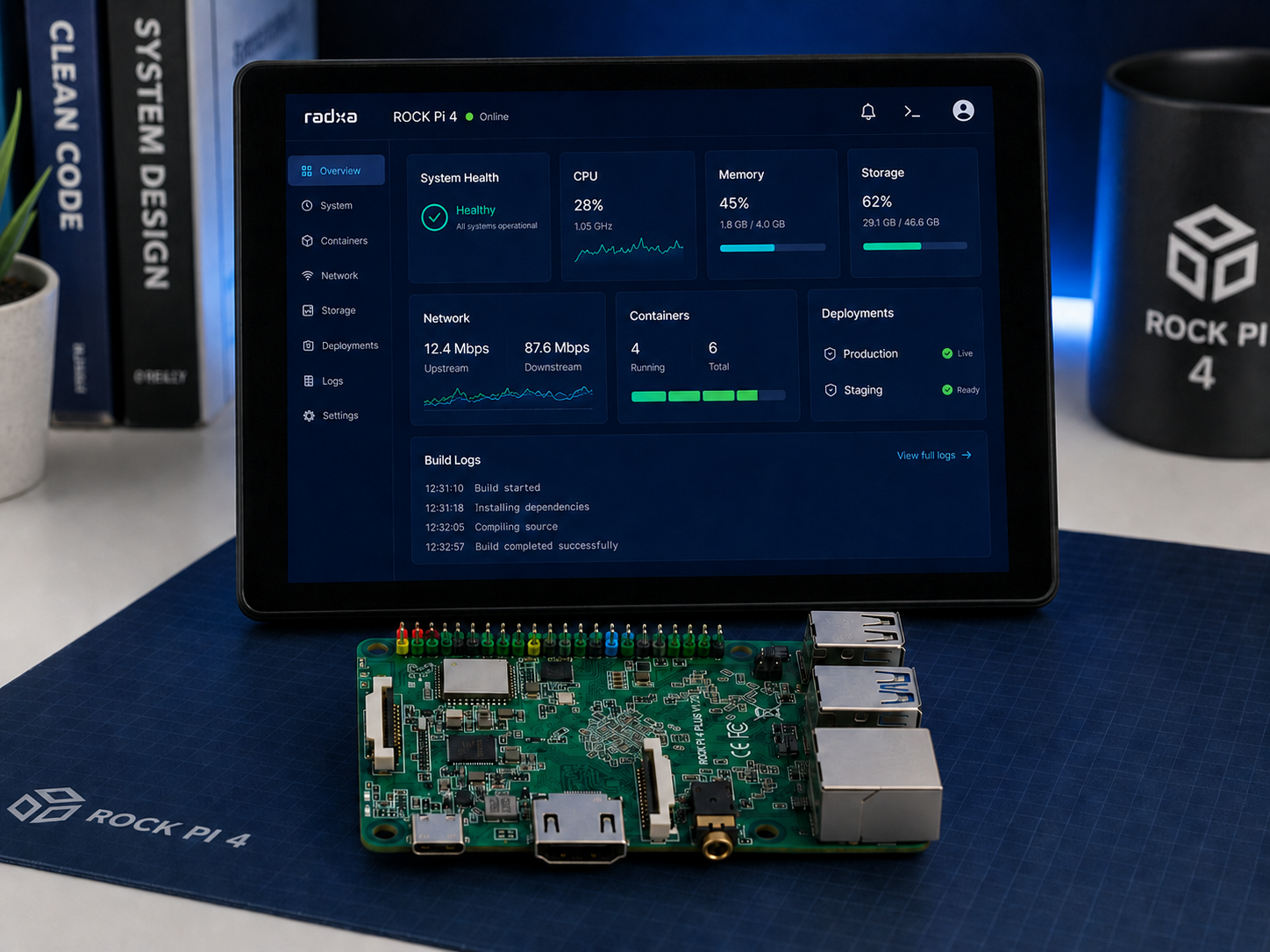
The Radxa Rock Pi 4B+ is a powerful RK3399-based single-board computer that punches well above its weight class. One question we get often: does it work with the official Raspberry Pi touchscreen displays? The short answer is yes — with a little configuration. Here is exactly how to get it running.
Why the Raspberry Pi Display Works on the Rock Pi 4B+
The official Raspberry Pi 7″ Touchscreen Display (and the newer 2.8″ display) uses a DSI (Display Serial Interface) connector rather than HDMI. The Rock Pi 4B+ sports a four-lane MIPI DSI output on its 15-pin FPC connector — the same physical interface family used by the RPi displays, which makes hardware compatibility achievable.
The catch is that the Raspberry Pi display module includes an I2C-driven converter board (the “DSI bridge”) that translates MIPI DSI signals to the display panel. You will need a compatible DSI cable and — critically — a Linux kernel with the right panel driver compiled in.
What You Will Need
- Radxa Rock Pi 4B+ (any RAM/eMMC variant)
- Official Raspberry Pi 7″ Touchscreen Display (model SC0710)
- 15-pin MIPI DSI FPC cable (same pitch as the Rock Pi DSI port)
- Radxa Debian or Ubuntu image with a 5.10+ kernel
- 5V 3A power supply (display draws additional current)
Step 1 – Flash a Compatible Image
Use the latest Radxa-provided Debian Bullseye or Ubuntu Jammy image from the official Radxa GitHub releases. Older images ship with 4.4 kernels that lack the panel-raspberrypi-touchscreen driver. A 5.10 or newer kernel is required.
xzcat rock-pi-4b-plus-debian-bullseye-arm64.img.xz | \
  sudo dd of=/dev/sdX bs=4M status=progress conv=fsync
Step 2 – Connect the Display
Power off the board completely. Gently lift the DSI connector latch on the Rock Pi 4B+ and insert the FPC cable with the contacts facing up (away from the board). Lock the latch. Repeat on the Raspberry Pi display bridge board — the contacts face the same direction. Double-check the cable is seated fully on both ends before powering up.
Step 3 – Enable the DSI Panel via Device Tree Overlay
Boot the board (HDMI output should still work at this point) and edit the Armbian/Radxa extlinux or U-Boot configuration to apply the DSI overlay:
sudo nano /boot/dtbs/rockchip/overlays/rock-pi-4b-plus.dtboAdd the following to /boot/armbianEnv.txt or the equivalent overlay config for your image:
overlays=rk3399-rock-pi-4b-plus-dsiIf your image uses extlinux, append the overlay to the fdtoverlays line in /boot/extlinux/extlinux.conf.
Step 4 – Configure Xorg or Wayland Output
After a reboot with the overlay active, DSI-1 should appear in xrandr --listmonitors. Set it as primary:
xrandr --output DSI-1 --primary --rotate normal --autoFor headless setups driving only the DSI display, disable HDMI output:
xrandr --output HDMI-1 --off --output DSI-1 --primary --autoTouchscreen Input
The Raspberry Pi display bridge uses an I2C touchscreen controller (FT5406). On the Rock Pi 4B+, this maps to i2c-6. Confirm it enumerates:
sudo i2cdetect -y 6You should see address 0x38 (FT5406). The touch input will appear as /dev/input/eventX — test with evtest before launching your GUI.
Rotation and Display Calibration
The 7″ display defaults to landscape. If your enclosure mounts it in portrait mode, rotate with:
xrandr --output DSI-1 --rotate leftFor touch calibration, install xinput-calibrator and run it with the display attached — the calibration matrix can be stored in an Xorg configuration snippet.
Performance Notes
The Rock Pi 4B+’s RK3399 Mali-T860 GPU handles the Raspberry Pi display at 60 fps without issue in 2D desktop workloads. For kiosk or HMI applications running Qt or Chromium in kiosk mode, expect smooth performance even at 1024×600. Hardware-accelerated video decoding via the VPU works over the DSI output just as it does over HDMI.
Wrapping Up
The Radxa Rock Pi 4B+ and the official Raspberry Pi touchscreen display are a capable pairing — you get the Rock Pi’s extra compute headroom (dual Cortex-A72 cores, PCIe slot, USB 3.0) combined with the compact, well-supported Raspberry Pi display ecosystem. The setup takes about 30 minutes once you have the right image and overlay in place.
Have questions about display bring-up or need a carrier board designed around a specific display? Reach out to our engineering team.